Quick Search - Keyword Suggestions
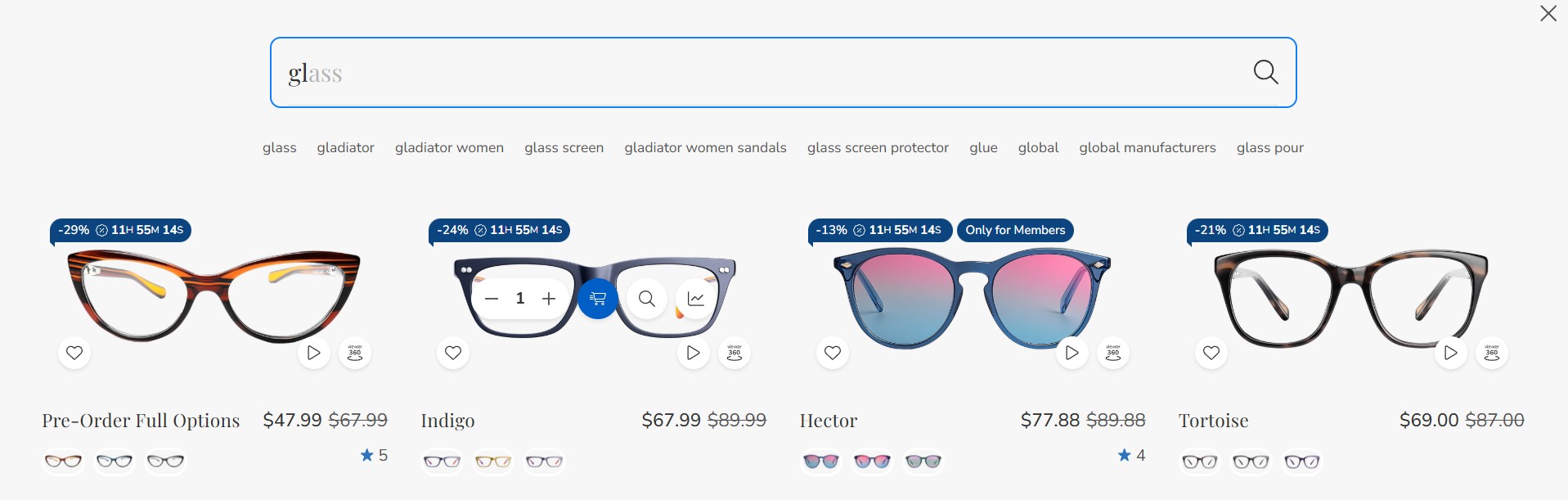
The keyword suggestions feature enhances the search experience by displaying popular keyword suggestions when users interact with the search box. This feature includes autocomplete functionality similar to Google Search and keyboard navigation support.
Quick Start
- Generate keywords:
- Go to BC Tools and click "Keyword Extractor" menu item
- Enter your store URL and extract keywords (includes free credits)
-
Download the generated CSV files
-
Upload CSV files:
- Upload the downloaded files to BigCommerce WebDAV
/content/folder -
Or upload to your own server/CDN
-
Enable feature:
- Go to Theme Editor > Header > Quick search
- Enable "Enable keyword suggestions"
- Configure the CSV file paths
-
Save & Publish
-
Test: Try searching on your storefront!
Features
- Smart Display: Shows top 10 popular keywords when focusing on the search box
- Realtime Filtering: Updates suggestions as users type, matching keywords that start with the search query
- Inline Autocomplete: Like Google Search, displays suggested completion directly in the search input
- Type "bo" → Shows "bo**ok**" with "ok" dimmed
- Press Right Arrow (→) to accept and continue suggesting
- Keyboard Navigation:
→(Right Arrow): Accept autocomplete suggestion↑/↓: Navigate between suggestionsEnter: Select highlighted suggestionEsc: Clear selection and autocomplete- Responsive Design: Adapts to mobile and desktop layouts
- Smart Loading: Uses lazy loading for optimal performance
Configuration
Enable/Disable the Feature
Go to Theme Editor > Header > Quick search section:
- Enable Enable keyword suggestions checkbox
- Configure CSV file paths (see below)
- Save & Publish
CSV File Configuration
You can specify up to 3 CSV files containing keywords:
- Keywords file 1: Single-word keywords (e.g., "laptop", "phone")
- Keywords file 2: Two-word keywords (e.g., "gaming laptop", "wireless mouse")
- Keywords file 3: Three+ word keywords (e.g., "best gaming laptop 2024")
File Path Options:
You can use either relative paths or full URLs:
Relative path: /content/suggest-keywords-1.csv
Full URL: https://example.com/data/suggest-keywords-1.csv
Note about Lazy Loading:
- If any file uses a relative path, CSV files load only when users focus on search (lazy loading) - except on the search page where they load immediately
- If all files use full URLs, CSV files load immediately on page load
- Lazy loading reduces traffic since BigCommerce servers don't support browser cache headers
To Disable
Method 1: Uncheck "Enable keyword suggestions" in Theme Editor
Method 2: Leave all 3 file paths empty
CSV File Format
Each CSV file should have 2 columns without a header row:
- Keyword (text)
- Rank (number - higher rank = better match, higher priority)
Example CSV file:
Important: Higher rank numbers mean the keyword will appear first in suggestions. Keywords are sorted by rank in descending order.
Creating CSV Files
Method 1: Use the Keyword Extractor Tool (Recommended)
The easiest way to create keyword CSV files is to use our Keyword Extractor tool:
Step-by-step instructions:
- Open BC Tools:
- Go to https://bc-tools.papathemes.com/
-
Click on the "Keyword Extractor" menu item to access the tool
-
Extract Keywords:
- Enter your BigCommerce store URL in the input field
- Click the extract button
- The tool will automatically analyze your store's products and extract relevant keywords
-
Keywords will be organized by word count with appropriate rank values
-
Download CSV Files:
- Once extraction is complete, download the generated CSV files
-
You'll typically get 3 files:
suggest-keywords-1.csv(single-word keywords)suggest-keywords-2.csv(two-word keywords)suggest-keywords-3.csv(three+ word keywords)
-
Upload to Your Store:
-
Option A - Upload to BigCommerce WebDAV:
- Connect to your store via WebDAV
- Create a
/content/folder if it doesn't exist - Upload the 3 CSV files to
/content/folder
-
Option B - Upload to Your Own Server/CDN:
- Upload the CSV files to your own hosting/CDN
- Use the full URLs in Theme Editor settings (e.g.,
https://yourdomain.com/keywords/suggest-keywords-1.csv)
-
Configure in Theme Editor (see Configuration section above)
This tool analyzes your actual product data and generates keyword suggestions with appropriate rank values automatically.
Note: The Keyword Extractor tool includes a few free credits to extract keywords. If you need to extract more keywords beyond the free credits, you'll need to purchase additional credits.
Method 2: Create Manually
If you prefer to create CSV files manually:
- Create the CSV files on your computer using the format above
- Use a spreadsheet program (Excel, Google Sheets) or text editor
- Save as CSV format with 2 columns: keyword, rank (no header row)
- Name your files:
suggest-keywords-1.csv(single-word keywords)suggest-keywords-2.csv(two-word keywords)suggest-keywords-3.csv(three+ word keywords)
Then upload using one of these options:
- Upload to BigCommerce WebDAV:
- Connect to your store via WebDAV
- Create a
/content/folder if it doesn't exist - Upload the 3 CSV files to the
/content/folder -
Use relative paths in Theme Editor:
/content/suggest-keywords-1.csv -
Upload to Your Own Server/CDN:
- Upload to your hosting or CDN service
- Use full URLs in Theme Editor:
https://yourdomain.com/keywords/suggest-keywords-1.csv
After uploading, configure the file paths in Theme Editor > Header > Quick search section.
Sample Data (based on actual demo data):
suggest-keywords-1.csv (single words):
set,80023
usb,70042
travel,70002
new,60028
wireless,60016
original,60007
fashion,60004
men,60000
high,50044
bag,50013
phone,45000
laptop,40000
tablet,35000
computer,30000
monitor,25000
keyboard,20000
mouse,15000
camera,12000
watch,10000
shoes,8000
suggest-keywords-2.csv (two words):
micro sd,30007
high heels,30000
sd card,20010
card reader,20008
memory card,20007
gaming laptop,18000
wireless mouse,16000
bluetooth headphone,14000
mechanical keyboard,12000
usb cable,10000
running shoes,8000
smart watch,7000
leather bag,6000
phone case,5000
laptop stand,4000
suggest-keywords-3.csv (three+ words):
micro sd card,20006
breathable mesh men,20000
cotton baby hat,10001
baby hat scarf,10001
gaming laptop 2024,9000
wireless gaming mouse,8000
noise cancelling headphone,7000
mechanical keyboard rgb,6000
fast charging cable,5000
leather travel bag,4000
running shoes men,3000
smart watch women,2500
phone case clear,2000
laptop stand adjustable,1500
Live Examples: You can download actual working CSV files from the demo site:
How It Works
- On Page Load:
- If using full URLs: CSV files load with low priority (doesn't block page)
-
If using relative paths: Waits until user focuses on search box (or on search page)
-
On Search Focus: Displays top 10 keywords sorted by rank
-
While Typing:
- Filters keywords that start with the typed text
- Shows inline autocomplete suggestion (first match)
-
Updates in realtime (debounced 100ms)
-
Selecting Keyword: Fills the search box and triggers quick search
Advanced Configuration
For advanced users who want to use external CDN or customize file paths, you can:
- Upload CSV files to your own CDN
- Use full URLs in the Theme Editor settings
- This enables immediate loading with browser caching support
Example with CDN:
Keywords file 1: https://cdn.yourstore.com/keywords/single-words.csv
Keywords file 2: https://cdn.yourstore.com/keywords/two-words.csv
Keywords file 3: https://cdn.yourstore.com/keywords/three-words.csv
Tips for Best Results
- Use the Keyword Extractor Tool: Start with our Keyword Extractor to automatically generate keywords from your actual products - this is the fastest and most accurate way
- Rank Keywords by Popularity: Assign higher rank numbers to more popular search terms (e.g., "laptop,80000" appears before "mouse,15000")
- Use Meaningful Rank Gaps: Leave gaps between ranks (e.g., 80000, 70000, 60000) so you can easily insert new keywords later
- Organize by Word Count: Use the 3 files to separate keywords by length for better matching:
- File 1: Single words ("laptop", "phone")
- File 2: Two words ("gaming laptop", "wireless mouse")
- File 3: Three+ words ("best gaming laptop 2024")
- Base on Search Analytics: Use your store's actual search data to identify popular keywords
- Update Regularly: Refresh your keyword lists based on seasonal trends and new products
- Start Small: Begin with 20-30 keywords per file and expand as needed
- Test Thoroughly: After uploading CSV files, test on different devices to ensure smooth performance
- Match Your Products: Include keywords that actually match products in your store